Assigning Journeys using HDL
Are you looking to assign journeys to employees in bulk using HCM Data Loader (HDL)? Whether you’re configuring person journeys or monitoring learning task completion, it’s crucial to understand how checklist data functions when loaded through HDL. In this blog, we’ll explore two methods of allocating journeys via HDL—one that triggers notifications and another that does not.
What is an Allocated Journey?
An allocated journeys is an instance of a journey template assigned to one or more workers. It includes a series of tasks that employees or contingent workers must complete—often used for activities like onboarding, offboarding, or internal transitions.
Now let’s see the ways to assign journeys:
Allocatechecklist.dat:
You can allocate a checklist by simply providing the checklist template details along with the person information. There’s no need to include individual task details, as they are automatically derived from the checklist template definition. This method is the preferred approach for bulk allocation when notifications do not need to be triggered.
METADATA|AllocateChecklist|PersonNumber|ChecklistInstance|TemplateChecklistName|TemplateChecklistCategory |ChecklistName|ChecklistCategory

MERGE|AllocateChecklist|1001|1|Holiday Calendar 2025|ONBOARD|Holiday Calendar 2025|ONBOARD
ChecklistInstance: A journey instance starts with the number 1. If you need to assign the same journey to an employee again, increment the instance number to 2, and continue increasing it for each subsequent assignment.
TemplateChecklistName/ChecklistName: Journey Name
TemplateChecklistCategory/ChecklistCategory: Pass the appropriate lookup code for the journey category, which is derived from the CHECKLIST_CATEGORY lookup based on the journey setup.
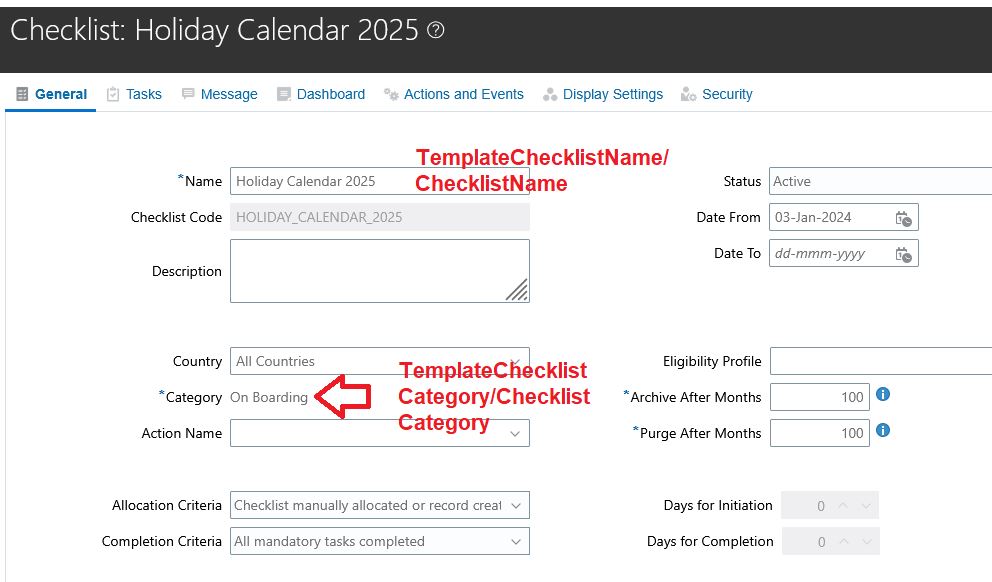
Note: This example AllocateChecklist.dat demonstrates how to allocate a checklist template using user keys. If the performer or owner of the checklist is the initiator, you’ll need to pass the InitiatorPersonNumber.
ChecklistMassAllocation.dat:
You can use the ChecklistMassAllocation HDL business object to bulk assign a checklist to employees and generate notifications accordingly.
In the below example, the ChecklistMassAllocation.dat file creates a mass allocation object with a list of employees. It has 2 sets – ChecklistMassAllocation and ChecklistMassAllocationCriteria:
ChecklistMassAllocation – It will have a single row with the details of allocation code which will be used to run the process.
ChecklistMassAllocationCriteria – This contains the employee’s data to whom the journeys will be assigned.
Here is the sample:
METADATA|ChecklistMassAllocation|Name|Description|ChecklistAllocationCode|ChecklistName|InitiatorPersonNumber|Comments|Status|AllocationType|StartDate
MERGE|ChecklistMassAllocation|HDL Mass Allocation1|HDL Mass Allocation1|HDL_MASS_ALLOC_AK1|Holiday Calendar 2025|10089|Mass assign journey to employees|ORA_CHK_ACTIVE|ADHOC|2025/03/24


METADATA|ChecklistMassAllocationCriteria|ChecklistAllocationCode|ChecklistAllocCriteriaCode|ExcludeFlag|CriteriaType|PersonNumber|AssignmentNumber|EnabledFlag
MERGE|ChecklistMassAllocationCriteria|HDL_MASS_ALLOC_AK1|101_20250324|N|ORA_PERSON|101|E101|Y
MERGE|ChecklistMassAllocationCriteria|HDL_MASS_ALLOC_AK1|102_20250324|N|ORA_PERSON|102|E102|Y
MERGE|ChecklistMassAllocationCriteria|HDL_MASS_ALLOC_AK1|103_20250324|N|ORA_PERSON|103|E103|Y
MERGE|ChecklistMassAllocationCriteria|HDL_MASS_ALLOC_AK1|104_20250324|N|ORA_PERSON|104|E104|Y
Explanation for fields for ChecklistMassAllocation
- Name : Unique name for allocation - used in running the process
- Description : Unique description for allocation - used in running the process
- ChecklistAllocationCode : Unique ChecklistAllocationCode for allocation - used in running the process
- ChecklistName : Name of journey to be assigned
- InitiatorPersonNumber : Initiator person number (admin)
- Comments : Any required comments
Explanation for fields for ChecklistMassAllocationCriteria
- ChecklistAllocationCode : Same as ChecklistAllocationCode from second row
- ChecklistAllocCriteriaCode : Unique description for allocation - used in running the process Unique code for each employee - can be combination of employee and date etc
- ExcludeFlag : N
- CriteriaType : Category Code
- PersonNumber : Employee ID
- AssignmentNumber : Employee assignment number
- EnabledFlag : Y
Once the HDL is run, you can use the Mass Assign Journeys or Allocate Scheduled Journeys ESS processes to actually assign the journeys.
One key attribute you’ll need to provide is the ChecklistAllocCriteriaCode. This is a required user key for new records and serves as the unique identifier for your Mass Allocation configuration.
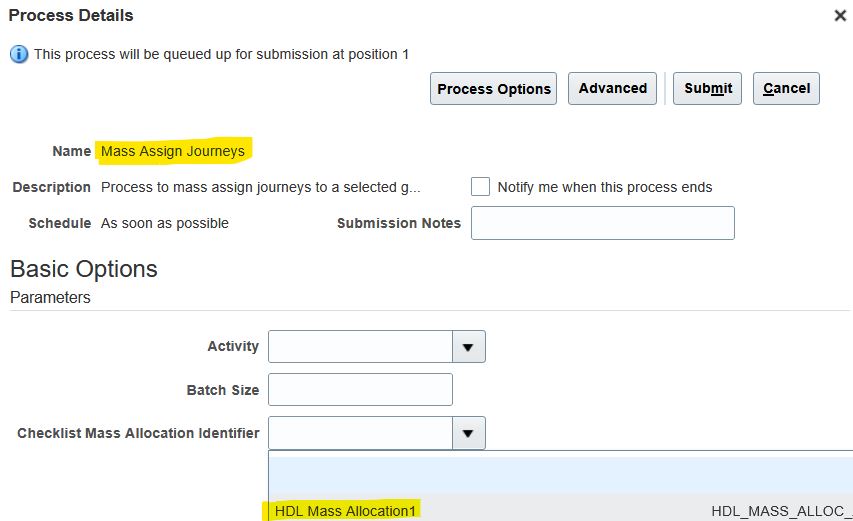
Once everything is set up, assigning the journeys is a simple process:
- Navigate to Tools > Scheduled Processes.
- Run the Mass Assign Journey process.
- Use the ChecklistMassAllocation identifier you provided in your .dat file (for example, HDL_MASS_ALLOC_AK1).
Key Rules for Loading Allocated Checklists Using HDL
When using HDL to load allocated checklists, keep the following guidelines in mind:
- Checklist Template and Worker Must Exist
Before loading, ensure that:
- The checklist template you’re using already exists in the target environment.
- The worker to whom the checklist is being assigned is also present in the system.
If either is missing, the load process will fail.
- Notifications Depend on the HDL Business Object Used
- When using the AllocateChecklist HDL object, no workflow notifications are triggered.
- When using ChecklistMassAllocation, workflow notifications are sent once journeys are allocated.
Choose the right object depending on whether you want automatic notifications sent to workers.
- Immediate Allocation—Regardless of Date
- Even if your .dat file specifies a future allocation date, the allocation is effective immediately upon loading. Plan accordingly if timing is important for your processes.
- Eligibility Evaluation and Auto Allocation -The AllowAutoAllocation attribute is set to ‘Y’ by default, meaning eligibility is evaluated at both the checklist and task level during allocation.
- However, eligibility is not re-evaluated if you later update the checklist or add new tasks.
Keep this in mind when making changes to ensure tasks are still relevant to the assigned workers.
- Inactive Persons Are Not Supported in Mass Allocation
The ChecklistMassAllocation HDL object does not support inactive workers. By default, journeys are only assigned to:
- Active workers
- Those with a primary assignment
This is a crucial consideration when planning mass checklist distributions.
References:
** Oracle Document URL is subject to change with every upgrade.